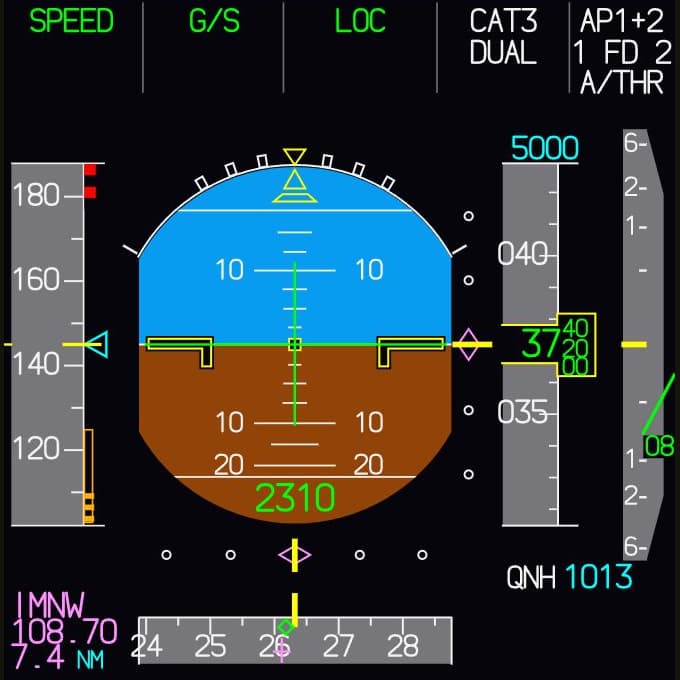
PFDPrimary Flight Display
Attitude, speed, altitude, vertical speed and heading at a glance. The top line tells you what the autopilot and autothrust are doing. When you fly, this is where your eyes are most of the time.
Fly-K works out the logic behind every switch and draws the displays to match. It runs on one Windows PC or spread across as many machines as your cockpit needs. Built by pilots who fly the A320.
In development
The waitlist hears first when it's ready.
The displays are placeholders. Real screenshots will follow.
Fly-K is Windows software for your home cockpit. It simulates the A320's systems, from the electrics to the warning logic, and draws the cockpit displays to match.
You build the cockpit; Fly-K supplies what goes on inside the aircraft. Flip a switch, and Fly-K works out what would happen in the real aircraft and shows it on the displays.
Fly-K is still in development. This page describes what we are building right now.
Electrics, hydraulics, fuel, bleed air: Fly-K models the systems together with their dependencies. A switch changes more than a light. It changes everything that depends on it, even when something has failed.
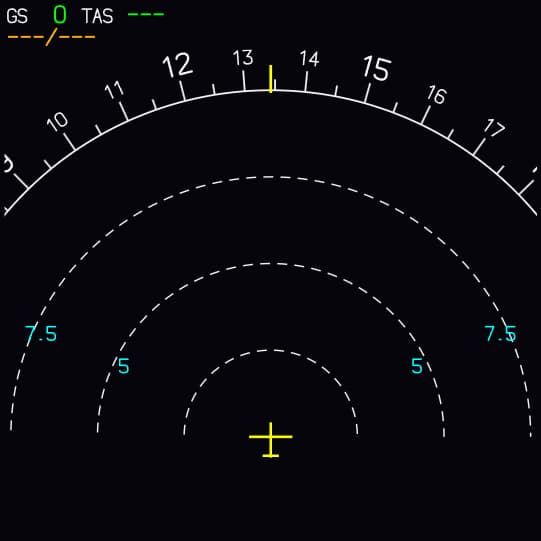
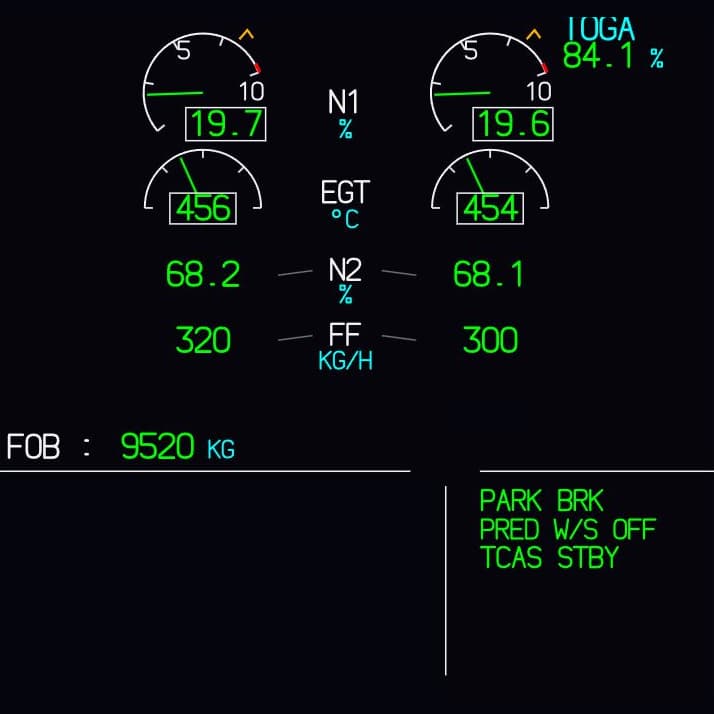
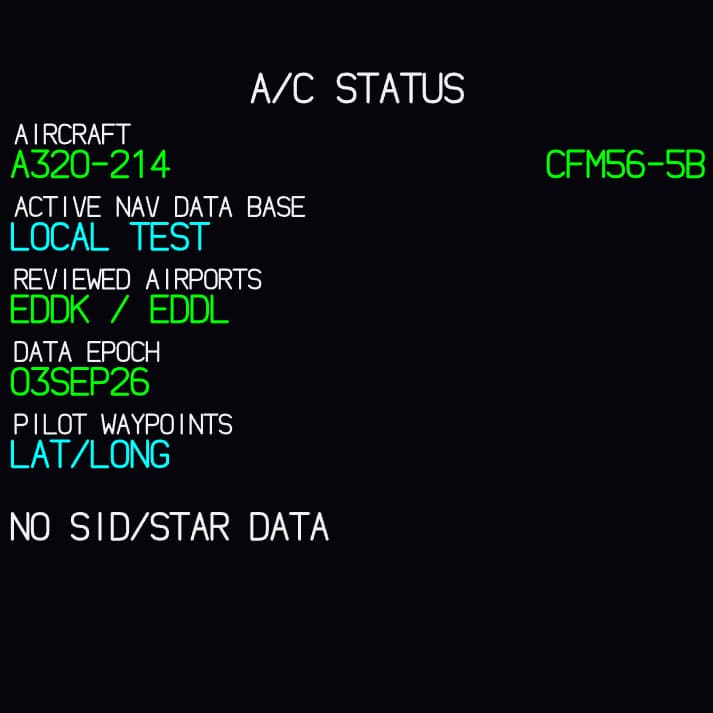
See the system logicPFD, ND, both ECAM displays, MCDU and ISIS. They show what the logic is working out at that moment, in normal operation and when something fails.
See the displaysOne machine runs all the logic as the host; the clients on your network draw the displays. Spread your cockpit across several PCs, or start with just one.
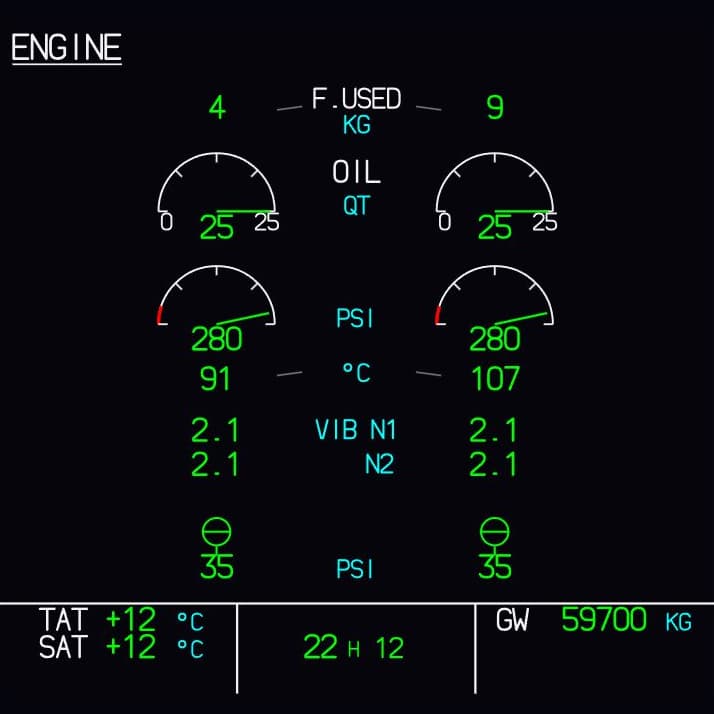
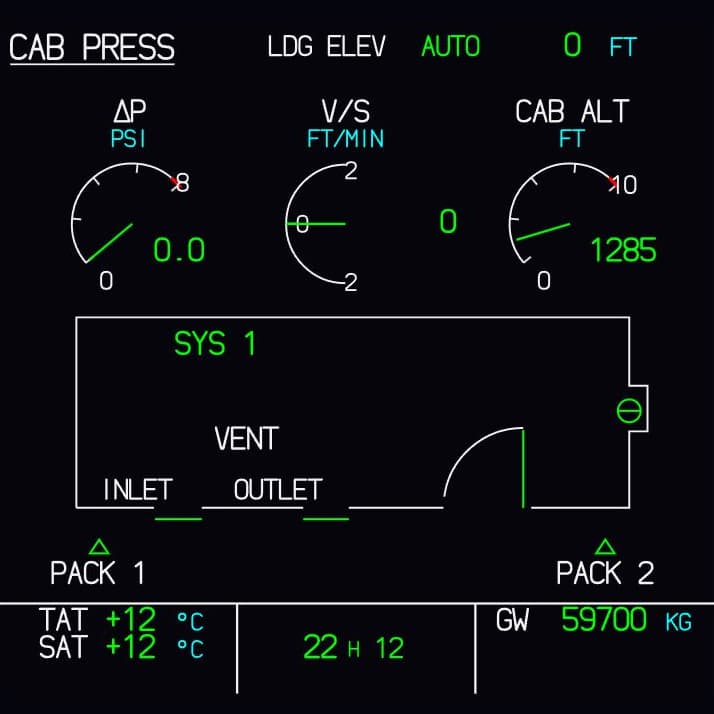
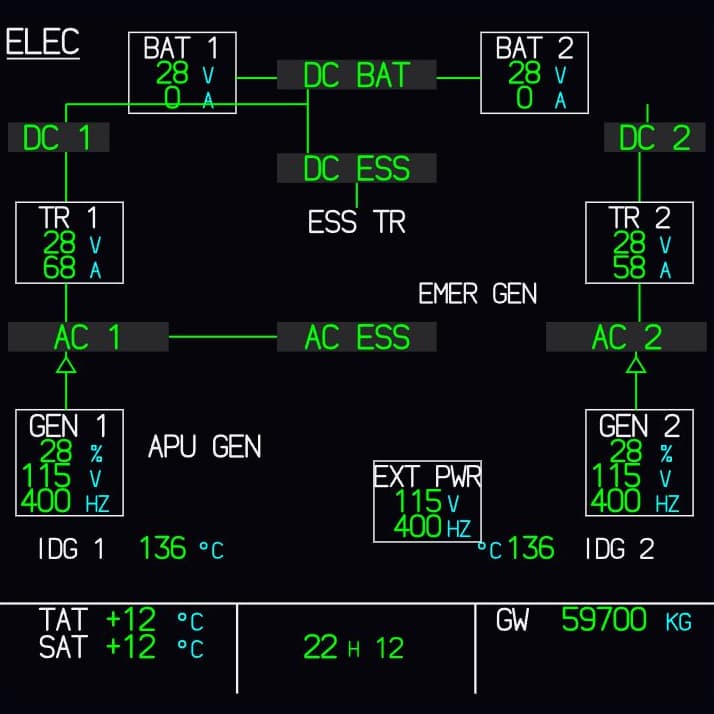
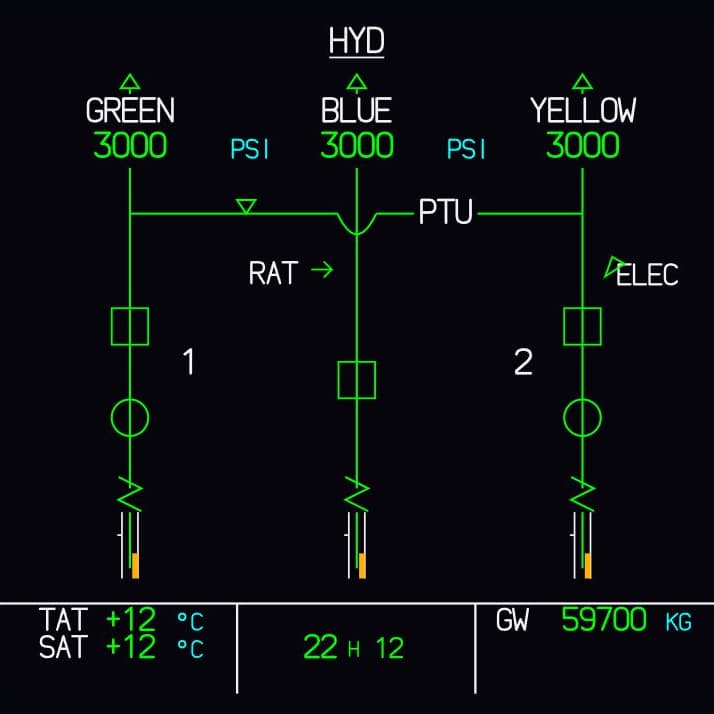
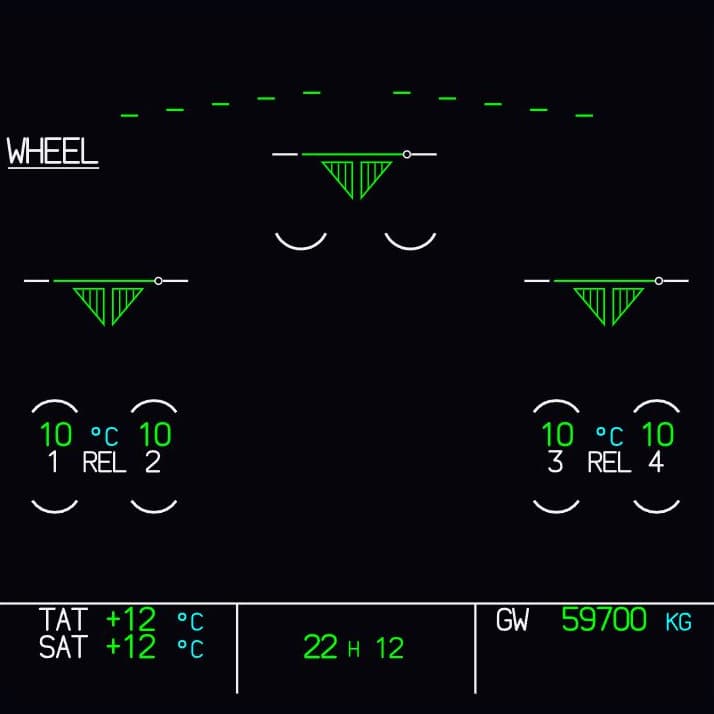
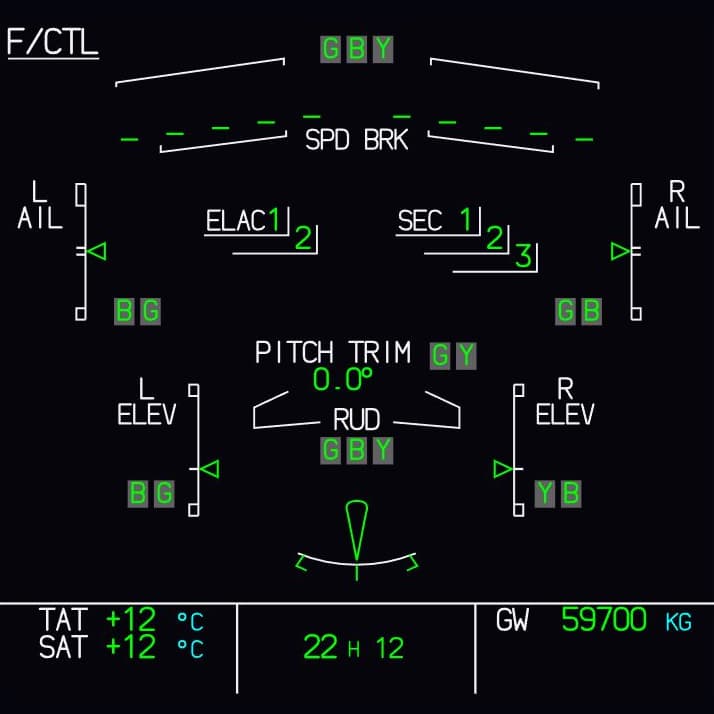
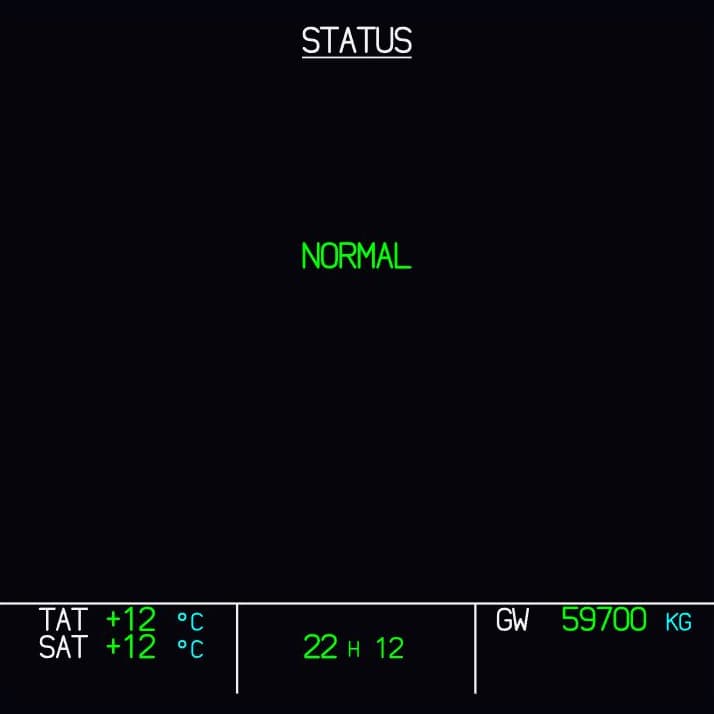
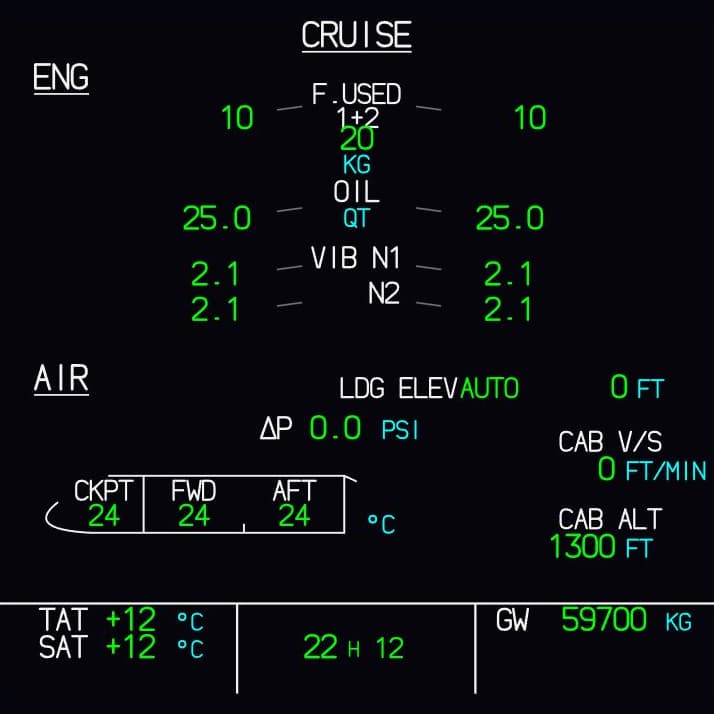
See the networkFly-K draws the A320's displays: the two large ones in front of each seat, the ECAM in the centre with all of its system pages, plus the MCDU and the ISIS. Here is what each one shows and what you need it for.
The images are placeholders. Real screenshots from Fly-K will follow.
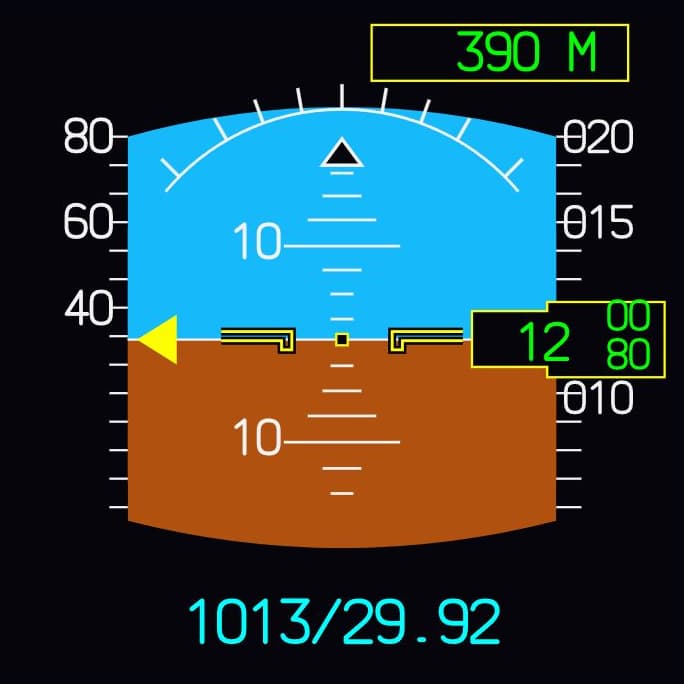
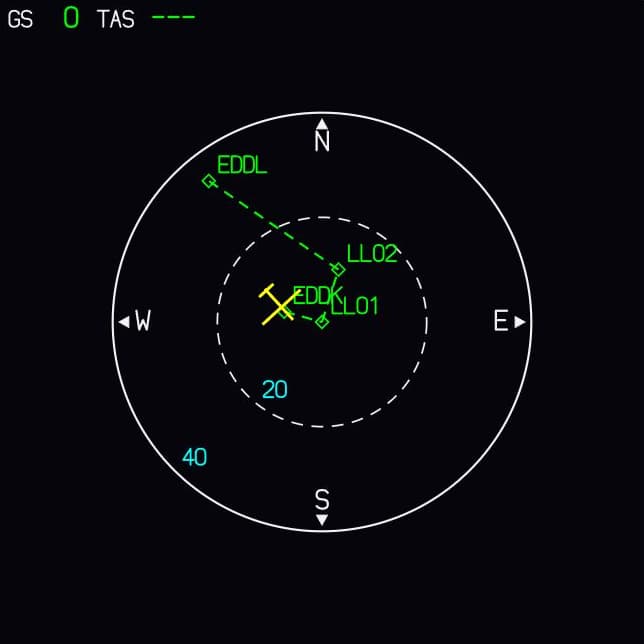
The two large displays in front of each seat: one for flying, one for navigating.
Attitude, speed, altitude, vertical speed and heading at a glance. The top line tells you what the autopilot and autothrust are doing. When you fly, this is where your eyes are most of the time.
Your route with waypoints and navaids as a map, in several modes and ranges. It shows where you are, where you're going and where the wind is coming from.
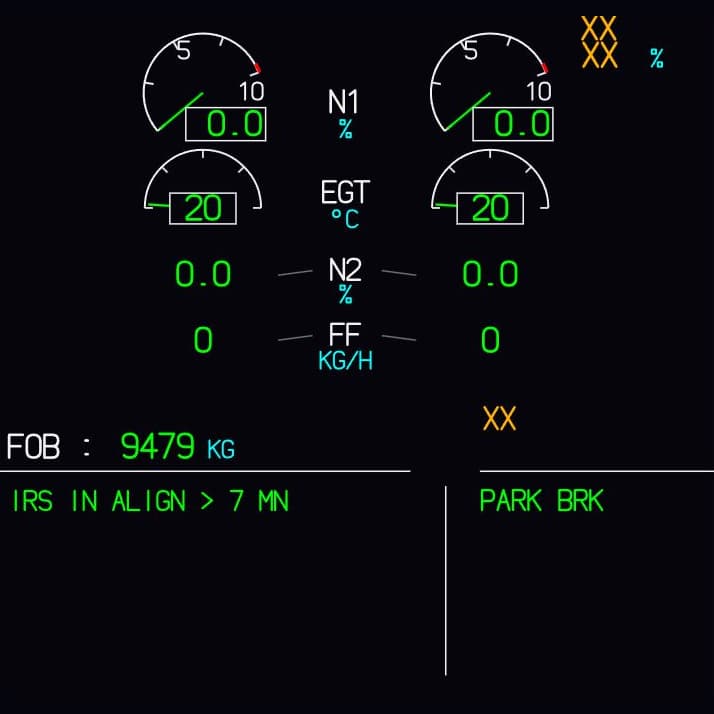
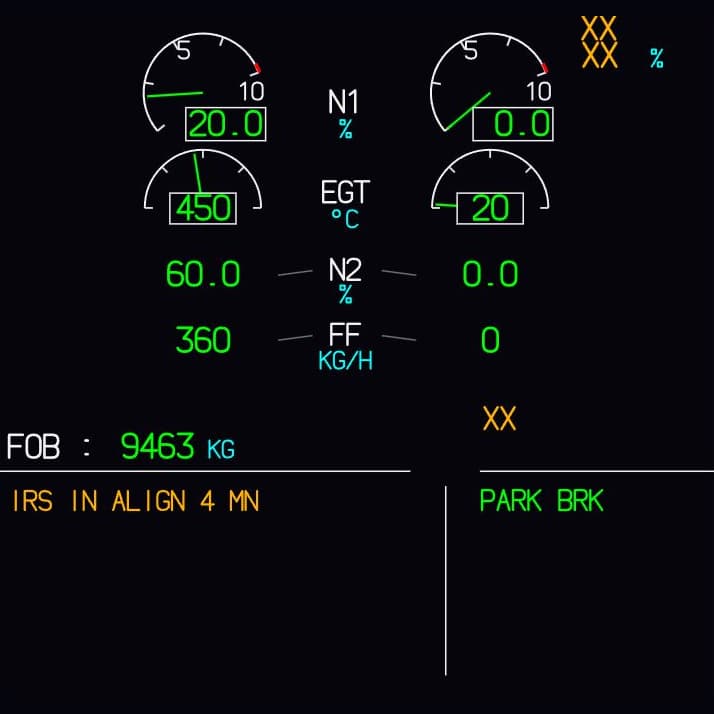
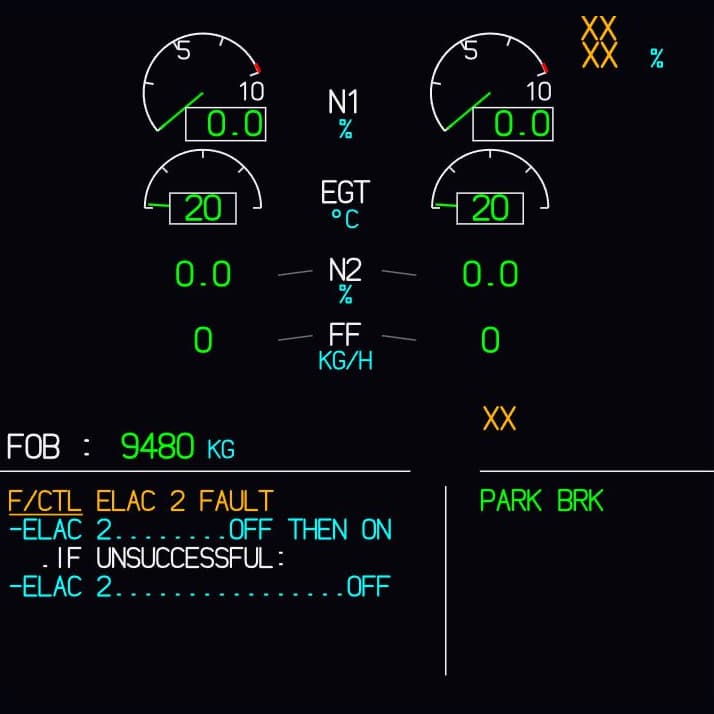
The two displays in the centre monitor the aircraft. Engines and messages on top, and below them whichever system matters right now.
On top, the key engine readings, fuel on board and the flap position. Below, what the aircraft has to tell you: warnings, cautions and the actions to work through.
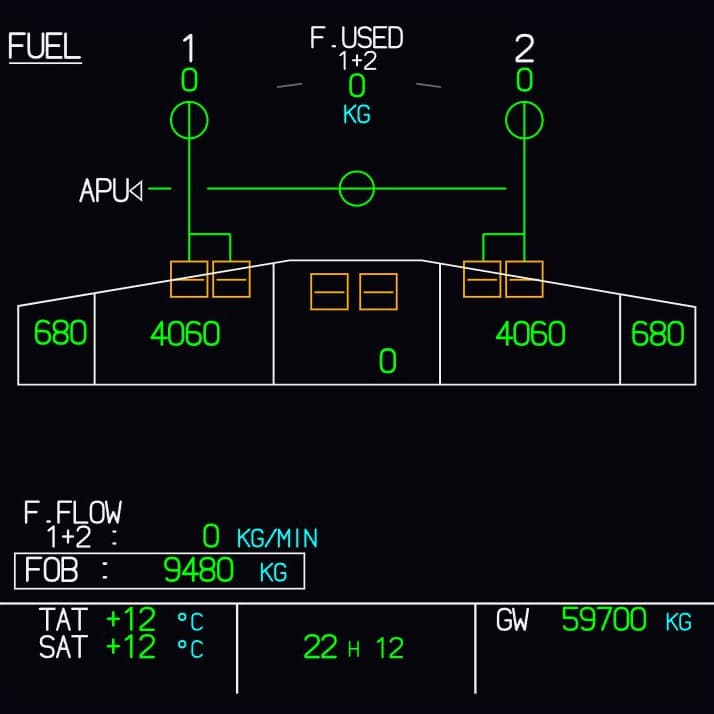
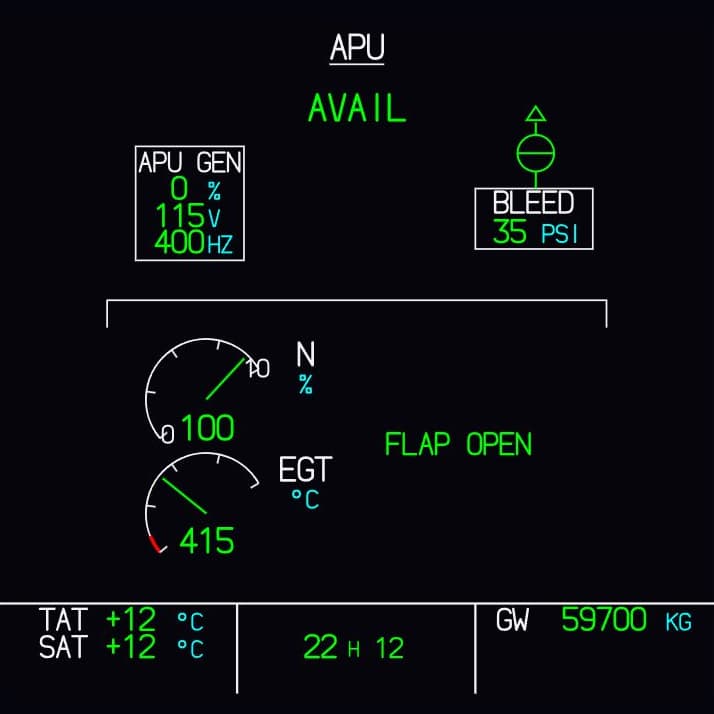
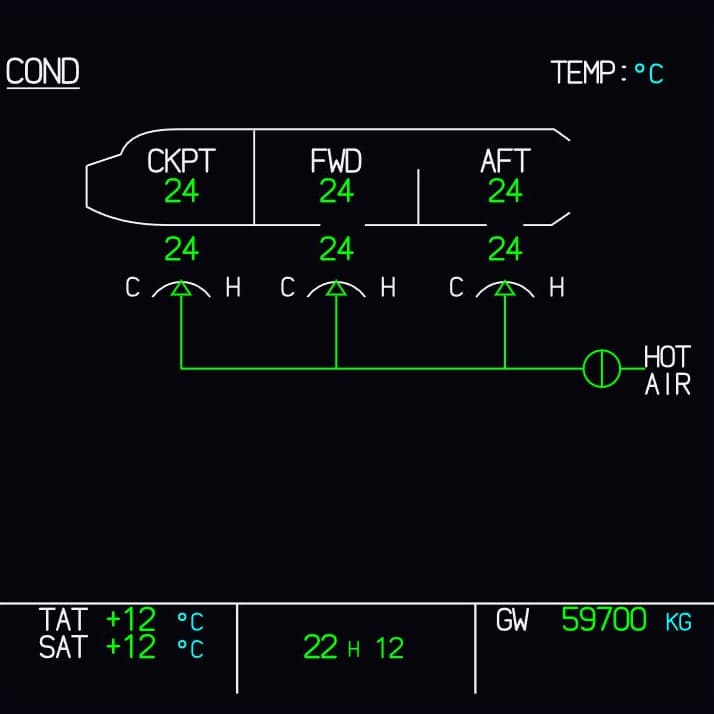
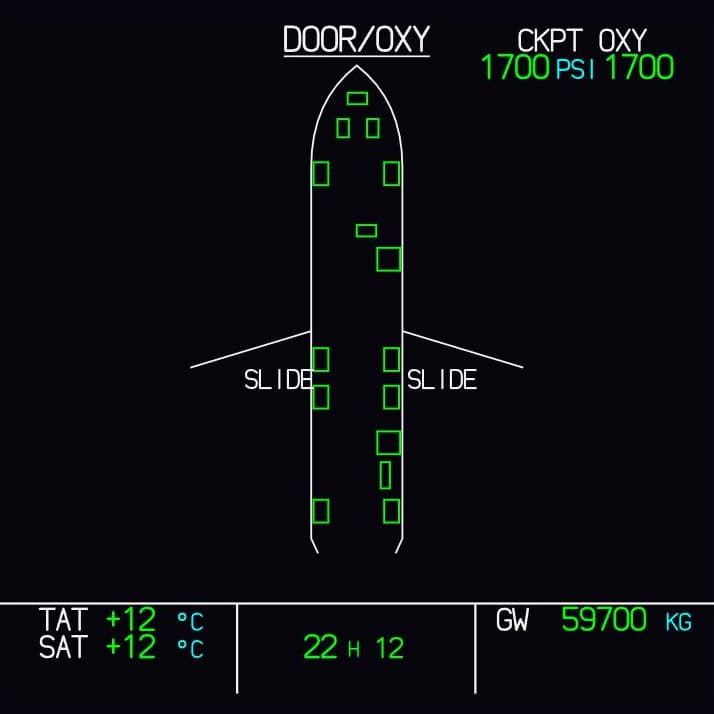
The lower ECAM display always shows one of 13 pages. You call them up on the ECAM control panel, or the aircraft brings up the right one by itself as soon as a system needs your attention.
Oil pressure, oil temperature, vibration and fuel used for each engine.
Bleed air from the engines and the APU: valves, pressures and temperatures.
Cabin altitude, differential pressure and the position of the outflow valve.
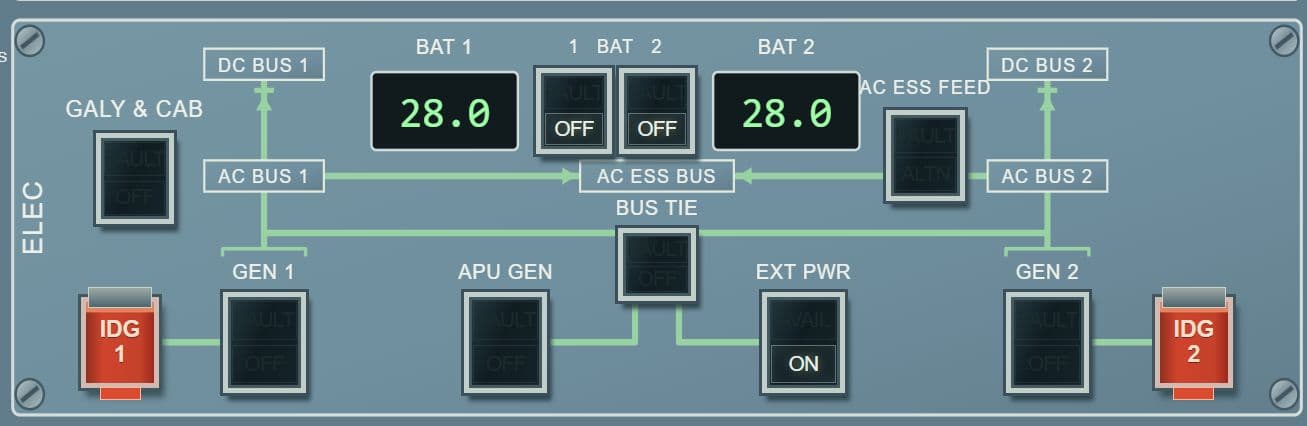
Generators, batteries and buses, and which one is feeding which.
The three systems (green, blue and yellow) with pumps, pressure and fluid level.
How much fuel is in which tank, and the pumps and valves it flows through.
APU speed and exhaust temperature, plus its generator and its bleed air.
Temperatures in the cockpit, cabin and cargo hold, and of the air flowing in.
Which doors and hatches are open, plus the cockpit oxygen supply.
Gear position, brake temperatures and nose wheel steering.
Every control surface and its position, plus the computers and hydraulic systems that move it.
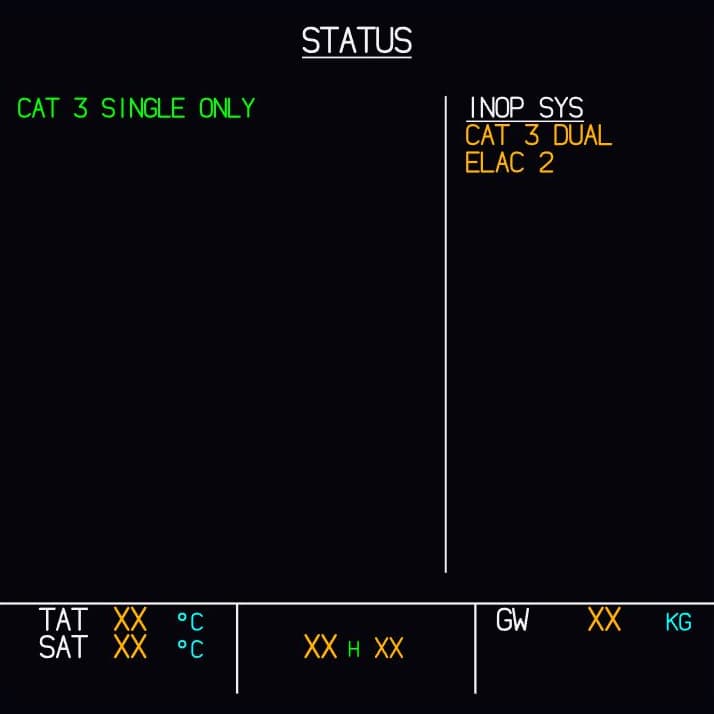
Where things stand after a failure: what is inoperative and what that means for approach and landing.
Comes up by itself in cruise: fuel used, oil, vibration, cabin pressure and temperatures.
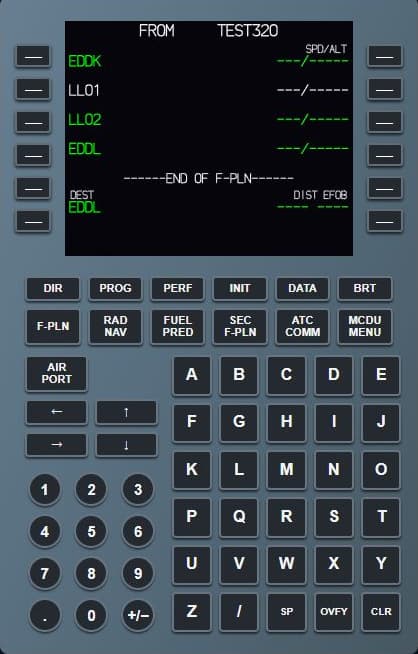
The unit you enter the flight plan on, and the standby instrument.
Screen and keyboard for the flight management system. This is where you enter the route, weights and performance data, and keep an eye on the flight plan.
The independent standby instrument. It keeps showing attitude, speed and altitude if the large displays fail.
Wiring a lamp to a switch is easy. In the aircraft, though, that lamp is lit because a system is in a particular state. Fly-K works out that state: switches, dependencies and failures behave as they do in the real aircraft, and the displays show the consequences.
In normal operation, each engine generator feeds its own half of the electrical network. Make generator 1 fail and follow what the logic does with it.
Normal operationFailure active. Press again to reset.
Generator 1 stops delivering power. On the overhead panel, FAULT lights up in the GEN 1 pushbutton.
AC BUS 1 doesn't go dark: the tie between the two sides closes by itself, and generator 2 now feeds both buses. To ease its load, part of the galley is shed.
Master caution comes on, a chime sounds, and the E/WD shows ELEC GEN 1 FAULT in amber, along with the actions to work through.
The lower ECAM display brings up the ELEC page by itself: GEN 1 in amber, both buses fed by generator 2.
None of this is a script being played back. Fly-K keeps recalculating the state of the network. Every further switch changes the picture again.
These are the systems we are working on. The scope grows as development moves on. The waitlist hears first what will be in at launch.
Fly-K is built as a host-client system. The Core computes all of the system logic in one place. The clients draw the displays and take your inputs, either on the same PC or spread across your network.
Everything on one machine: Core and clients run side by side.
Three machines: one for the Core, one for the displays, one for MCDU, pedestal and overhead.
Six machines: the Core and every client on a PC of its own.
The schematic shows how Fly-K is structured. The flight simulator is connected to the Core. The Core is the host: it computes the system logic and is connected to five clients.
The clients in this example: captain's displays (PFD and ND), ECAM (E/WD and SD), first officer's displays (PFD and ND), MCDU and pedestal, overhead.
The Core sends the system state to every client. MCDU, pedestal and overhead also send inputs back to the Core.
Core and clients can run together on one PC or be spread across several networked Windows PCs.
The Core is the host. It computes every system and holds the single valid state of the aircraft. That is why all displays show the same picture at all times, no matter which machine they run on.
A client shows what the Core tells it to: a PFD, the ECAM displays, an MCDU. It sends inputs back to the Core. All computing happens there.
You decide what runs where: everything on one PC, or spread across as many Windows PCs as your cockpit needs. When the cockpit grows, you add a machine.
Fly-K is developed by A320 pilots. A manual tells you how a system is built. How it behaves in day-to-day operation is something you only learn by flying the type. That knowledge goes straight into the software.
What the manual tells you
Which steps a procedure has and the order they come in.
What you learn in the cockpit
What you wait for between two steps, and what you check while you wait. A flow only works if every system responds at the right moment.
What the manual tells you
That a pump starts, a valve opens, a message appears.
What you learn in the cockpit
How long it takes. Whether something responds at once, after a few seconds or only after a self-test decides whether it feels real.
What the manual tells you
What an indication means.
What you learn in the cockpit
What happens just before it: which indication reacts first, which message pushes another one aside, what shows up for a moment during a switchover.
What that means for you: you work through the real procedures, and your cockpit responds the way you expect the real aircraft to.
Fly-K comes from a small team, not a corporation. When you write to us, you reach the people who do the development. That is how the software takes shape: in exchange with the people who run it in their own cockpits.
A request, a missing detail, or something that behaves differently in the real aircraft: an email is all it takes.
We compare your note with what we know from the real cockpit and tell you honestly what will come of it.
If it makes Fly-K better, we implement it. Short lines of communication mean no long sign-off loops between idea and code.
You test the change in your cockpit and get back to us if something still isn't right.
And then it starts over.
Write to us at mail@fly-k.com. Or join the waitlist: you will be the first to know when things get going.
Windows, a flight simulator and, if you use several machines, a network. Where something has not been settled yet, we say so.
Short answers, and an honest “not settled yet” where we don't know ourselves.
Windows software for home cockpits. Fly-K simulates the A320's system logic (what happens behind the switches) and draws the cockpit displays to go with it. It is built as a host-client system: one Core computes, the clients display.
For anyone building or running an A320 home cockpit. It doesn't matter whether everything runs on one machine or the cockpit is spread across several.
The A320. Whether other types will follow later has not been decided.
No. Core and clients also run together on one PC. Several machines pay off as your cockpit grows: you then spread the clients across as many networked Windows PCs as you need.
We will announce that at launch. What is certain: you need a flight simulator. Fly-K adds system logic and displays to it, but does not replace it.
Neither has been settled. Fly-K is in development; we will only name a price and a date once we can stick to them. Everyone on the waitlist will hear first.
Write to us at mail@fly-k.com. We are a small team, so your message goes straight to the developers.
No. Fly-K is intended for flight simulation only and is not approved for real-world flight training.
Fly-K is still in development. Sign up and we'll write to you as soon as it's ready. Before that, we'll only write when there is something to report.