Skip to content
Fly-K

A320 systems and displays for your home cockpit

Fly-⁠K is an A320 simulator for Windows and is operated in combination with the common flight simulators. One central Core computes the aircraft systems. Displays, panels and hardware are clients and compute nothing of their own. That leaves exactly one truth in the system, whether it runs on one PC or spread across as many machines as your cockpit needs. Built by pilots who fly the A320.

The PFD display as shown in Fly-K
PFD
The ND display as shown in Fly-K
ND
The E/WD display as shown in Fly-K
E/WD
The SD display as shown in Fly-K
SD

What Fly-K is

Fly-⁠K is an A320 simulator for home cockpits, running on Windows, and is operated in combination with the common flight simulators. Our reference aircraft is the A320-214 with CFM56-5B engines.

It is built around one central Core that computes the aircraft systems. Everything you see and touch in the cockpit is a client and computes nothing of its own. That leaves exactly one truth in the system, whether everything runs on one PC or is spread across your home network on as many machines as your cockpit needs.

You notice what that is worth the moment something fails. A failure acts on the component, and the ECAM derives its message from the actual state. There are no hard-wired message lists that fall apart when an unusual combination comes up. Today you can trigger 56 individual component failures and watch the consequences work their way through the systems and arrive on the displays, from the PFD to the last of the SD's 13 system pages.

Fly-⁠K has not been released yet.

Every display, from the PFD to the last SD page

You do not need a PFD explained to you. The interesting part is where its values come from: every display on this page is a client that computes nothing itself. It draws what the Core holds as the state of the aircraft at that moment.

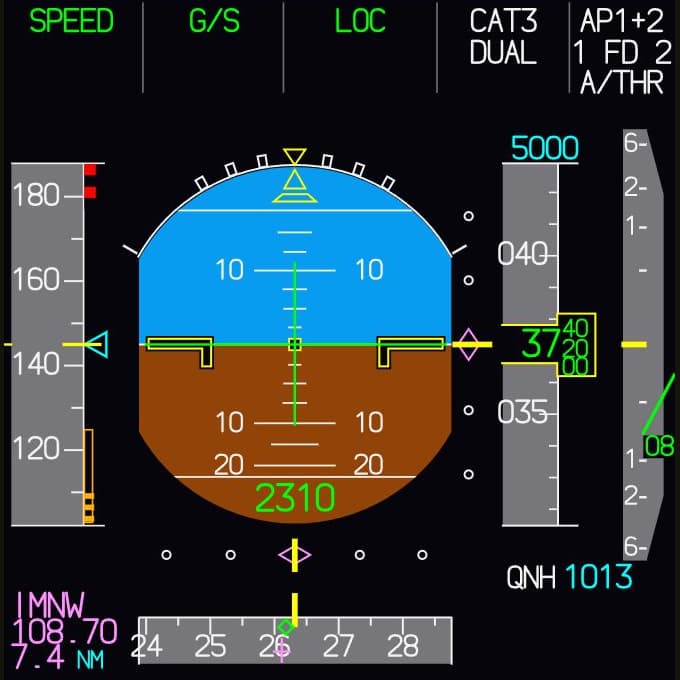
PFD and ND

There is a PFD and an ND for both seats, CAPT and FO, and all four are fed live by the Core. Each instrument also hangs on its electrical bus: without power the screen stays black, and after a longer interruption it runs its self-test first. None of this is staged. It follows the power supply.

The PFD display as shown in Fly-K

PFD

The PFD with sample values from an ILS approach: FMA, speed and altitude tapes, localizer and glide slope deviation, and the radio height below.

The ND display as shown in Fly-K

ND

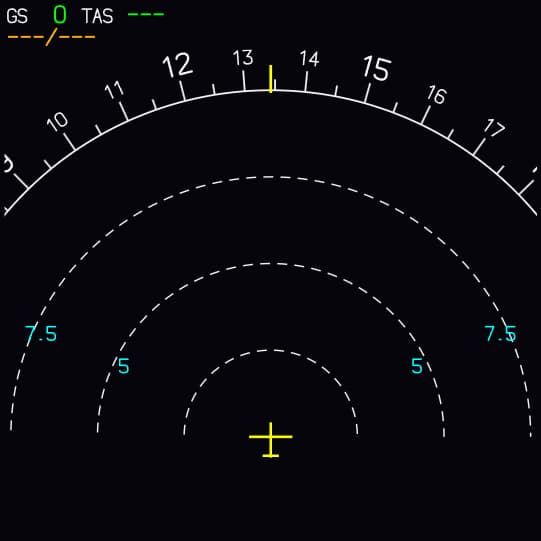
The ND in ARC mode on the ground: compass rose, range rings and the aircraft symbol. A route from the MCDU appears here to scale.

The E/WD display as shown in Fly-K

E/WD

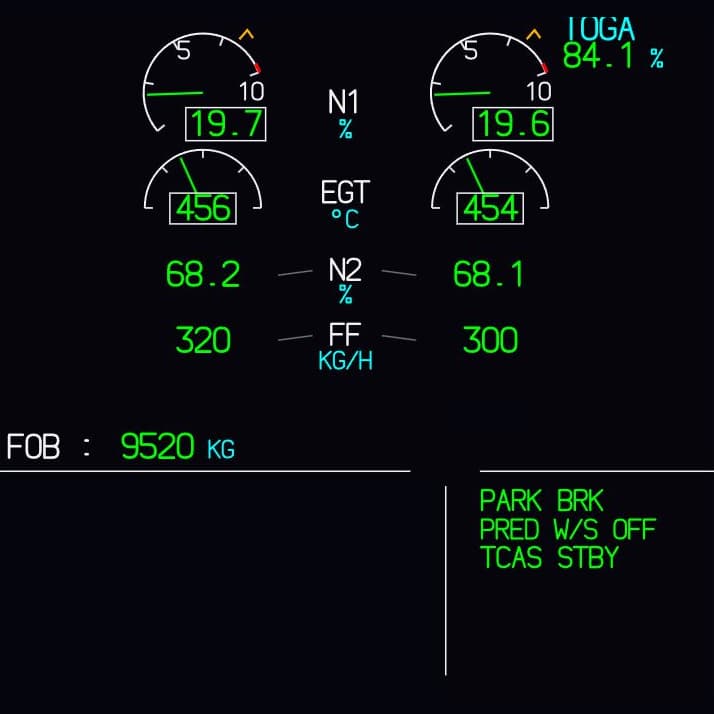
Both engines running: N1, EGT, N2 and fuel flow, with the fuel on board below. The memos for parking brake and TCAS are at the bottom right.

ECAM

The E/WD on top, the SD with 13 system pages below, plus the ECAM control panel. The messages are not stored anywhere as a ready-made list. The ECAM derives them from the state the Core computes. That is why E/WD, system page and STATUS still agree when several failures coincide in unusual ways.

The ENG display as shown in Fly-K

ENG

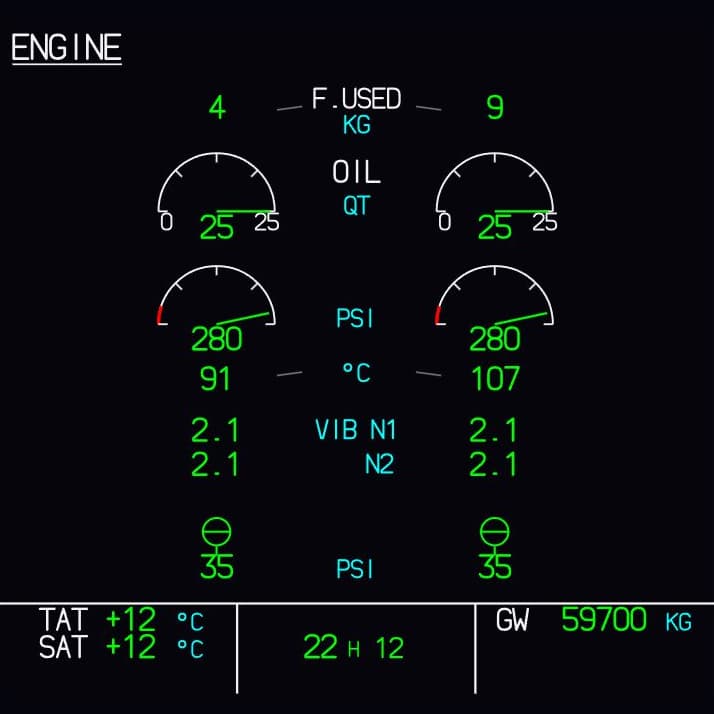
Fuel used, oil quantity, oil pressure, oil temperature and vibration for both engines.

Image to follow

BLEED

The Core computes bleed and packs as well, and stuck bleed valves are among the failures. We will add the image of this page later.

The PRESS display as shown in Fly-K

PRESS

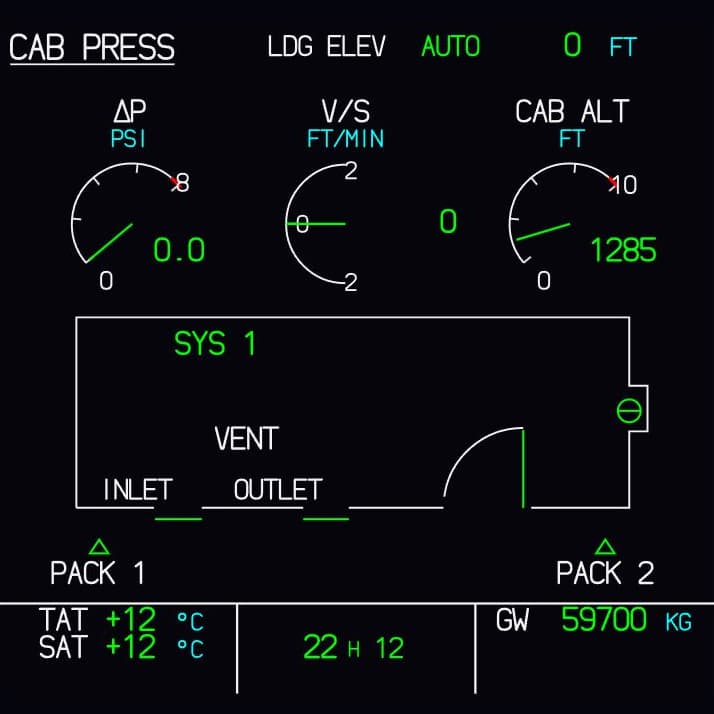
Cabin altitude, differential pressure and cabin vertical speed, with packs, ventilation and the outflow valve below.

The ELEC display as shown in Fly-K

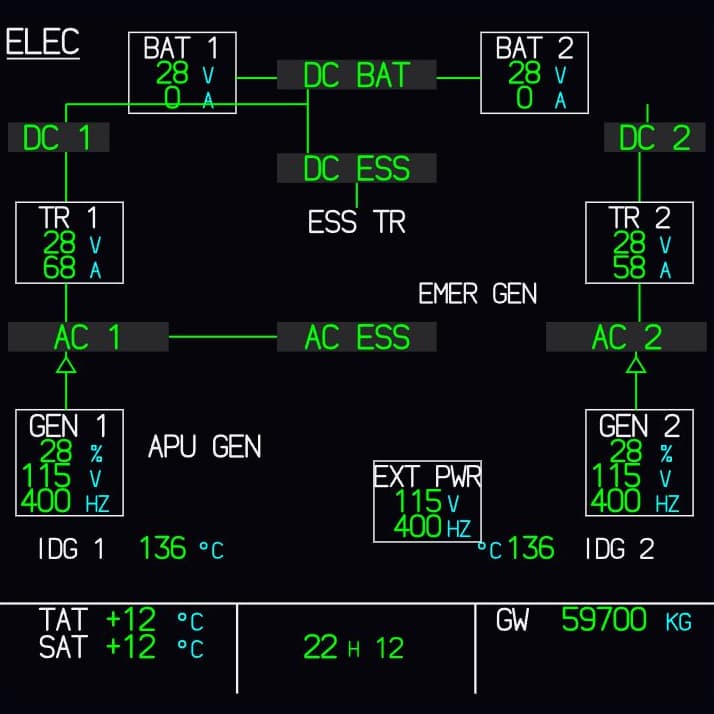
ELEC

Both generators on line, external power standing by. If a source drops out, this is where you see who takes over.

The HYD display as shown in Fly-K

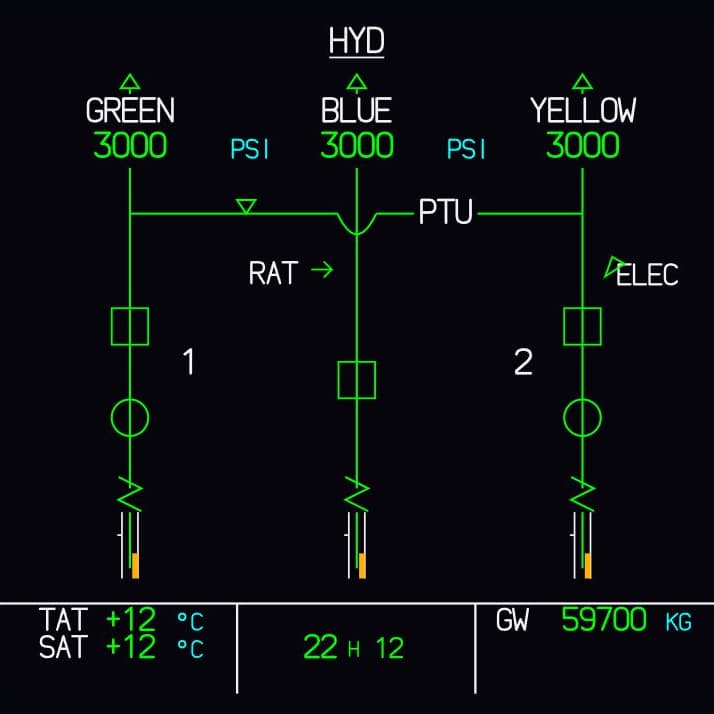
HYD

Green, blue and yellow at 3000 PSI each. The PTU in the middle is more than a line: its logic and the interlocks run in the Core.

The FUEL display as shown in Fly-K

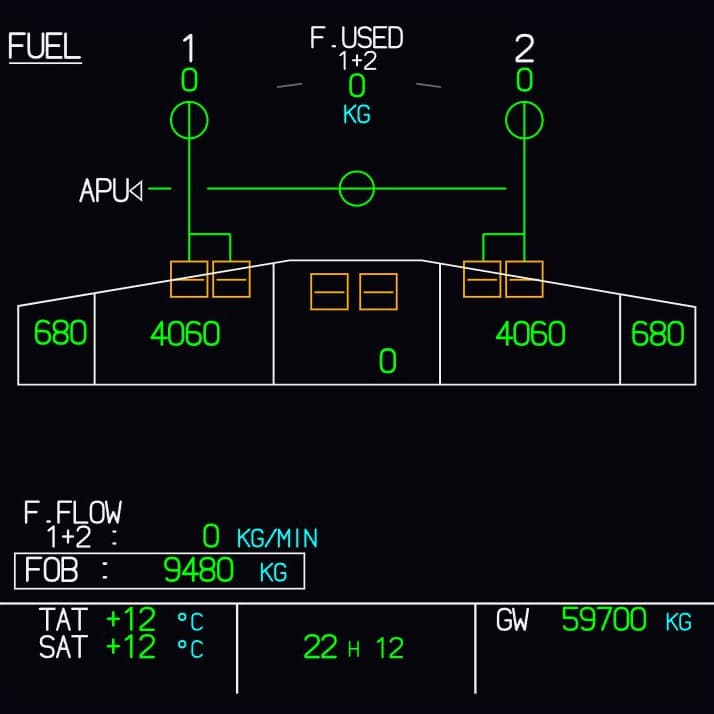
FUEL

Tank quantities, pumps and the total fuel on board. The numbers add up because the Core keeps a tank balance.

The APU display as shown in Fly-K

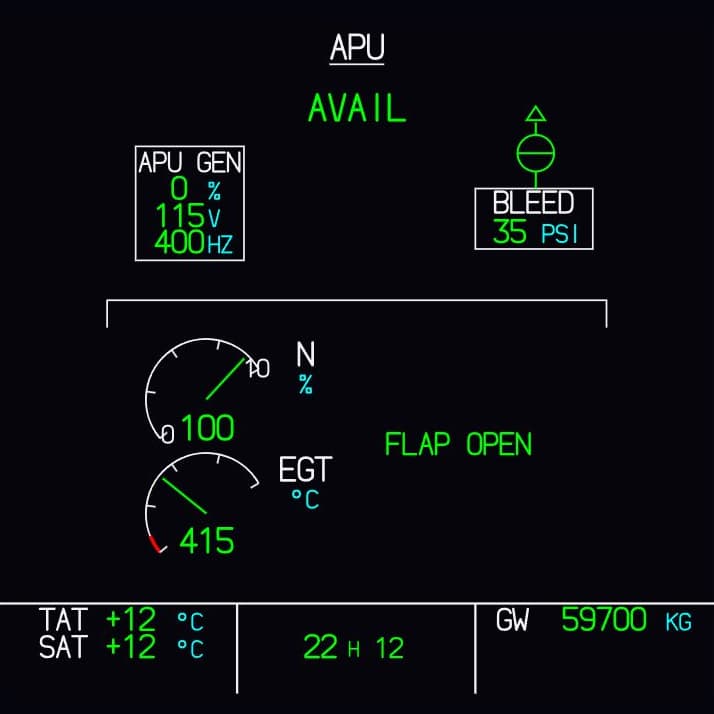
APU

The APU is running and shows AVAIL. Its generator and bleed air are standing by, and the air intake flap is open.

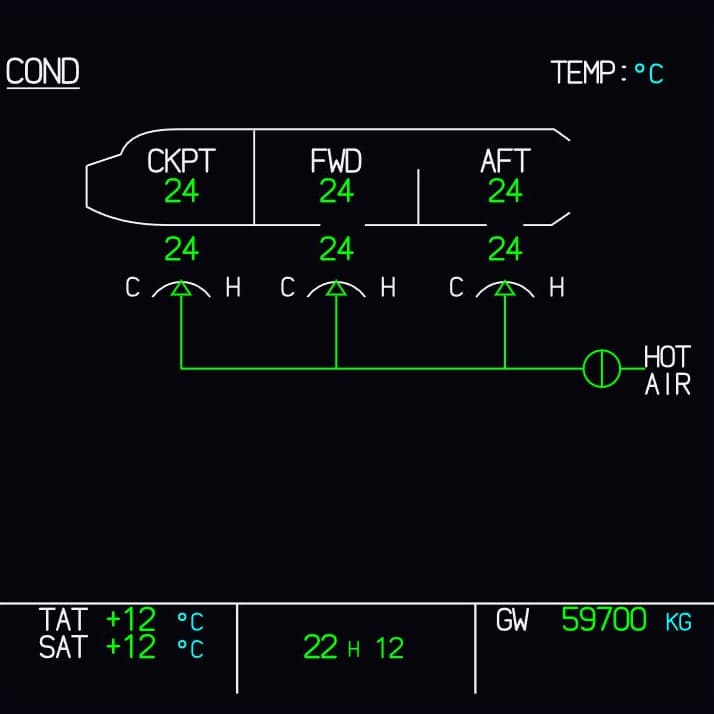
The COND display as shown in Fly-K

COND

The temperature zones for cockpit and cabin with the temperatures of the incoming air.

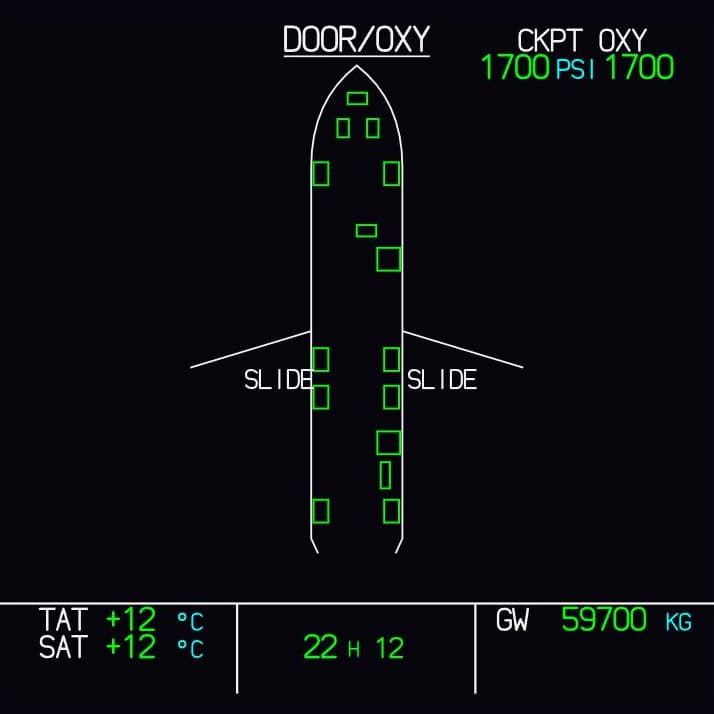
The DOOR display as shown in Fly-K

DOOR

Doors and cargo doors seen from above, with the cockpit oxygen pressure next to them.

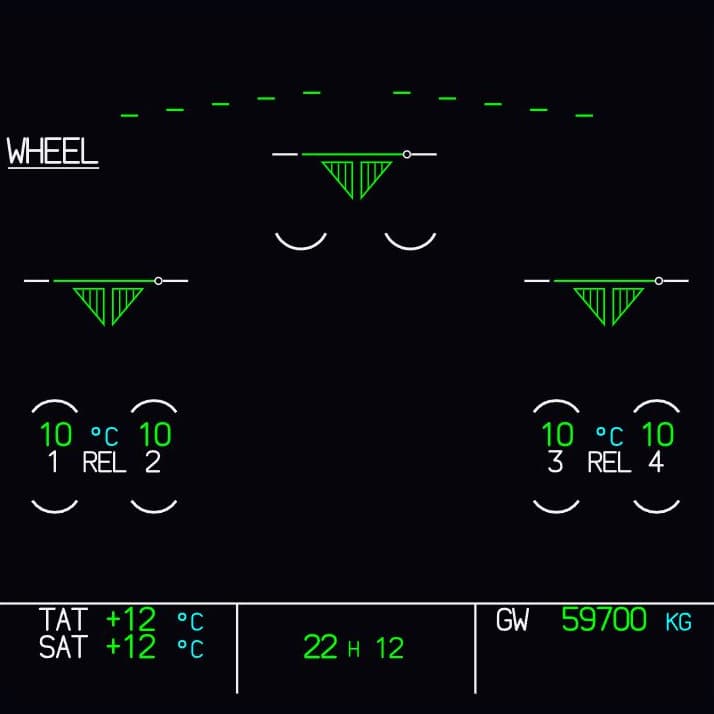
The WHEEL display as shown in Fly-K

WHEEL

Landing gear, brakes and brake temperatures for all four main wheels.

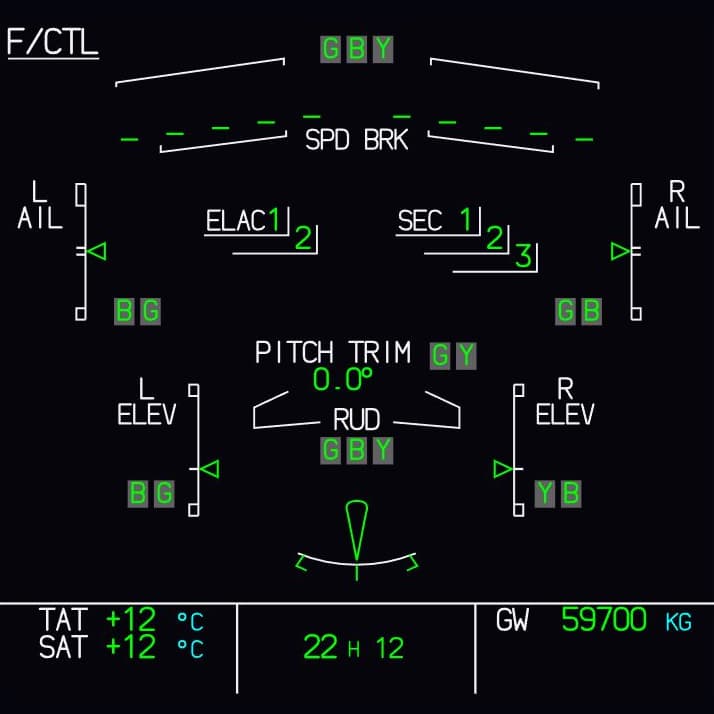
The F/CTL display as shown in Fly-K

F/CTL

Every control surface with the computers behind it. ELAC, SEC and FAC start up separately after power-on.

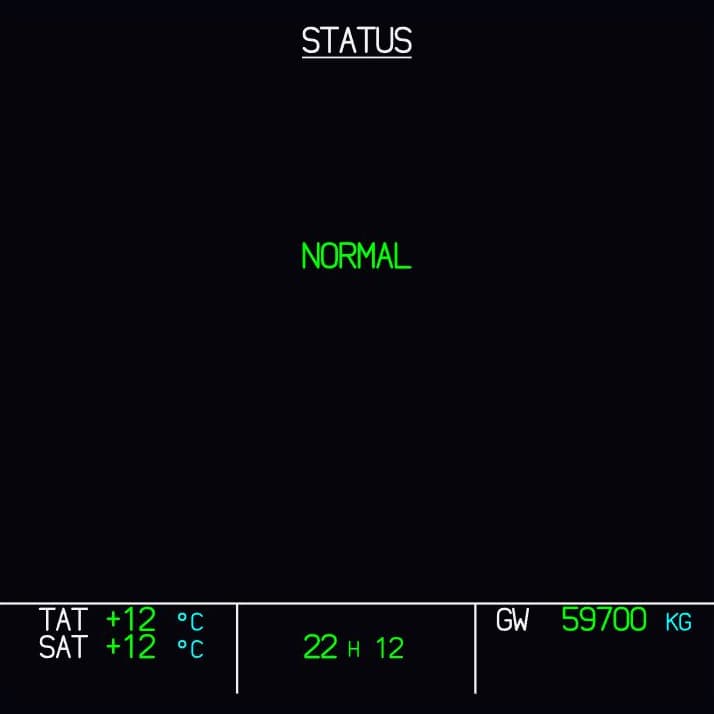
The STS display as shown in Fly-K

STS

With nothing wrong it reads NORMAL. After a failure the page lists separately what is no longer available.

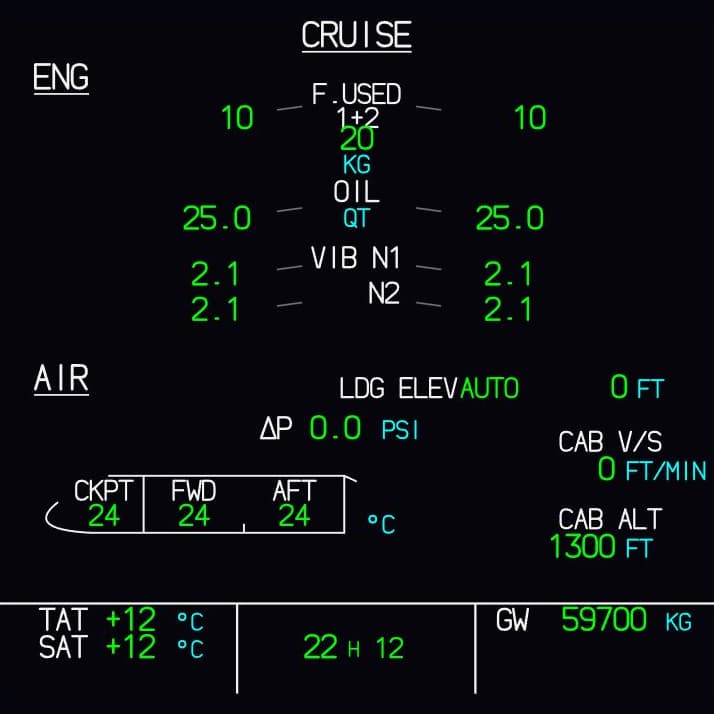
The CRUISE display as shown in Fly-K

CRUISE

The cruise page sums up engines and cabin: fuel used, oil, vibration, cabin altitude and zone temperatures.

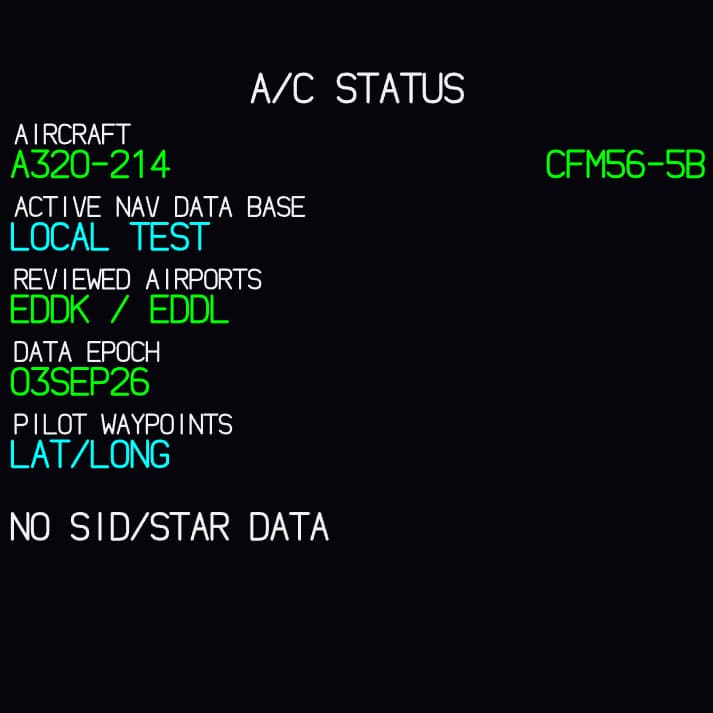
The MCDU display as shown in Fly-K

MCDU

The MCDU's A/C STATUS page: reference aircraft A320-214 with CFM56-5B, with the active navigation database and the pilot waypoints below.

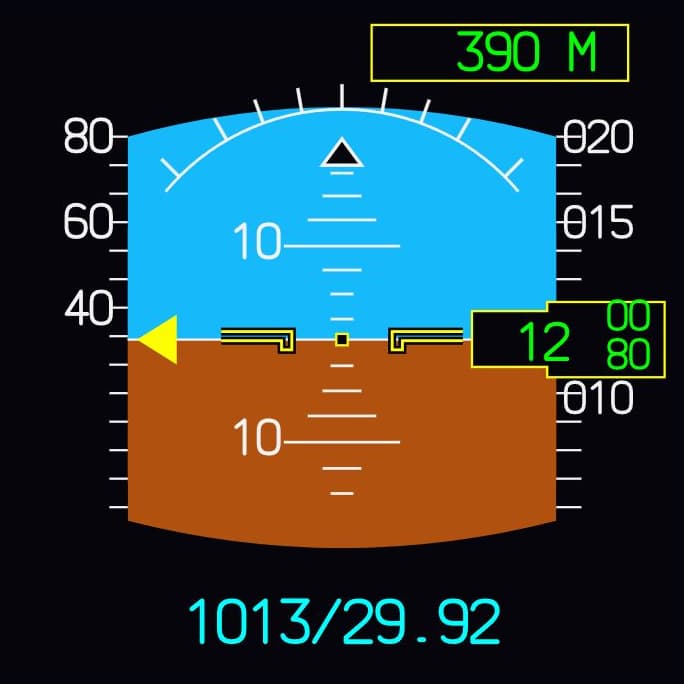
The ISIS display as shown in Fly-K

ISIS

The standby instrument with attitude, speed, altitude and baro setting. This display hangs on its bus too.

MCDU, standby and overhead

MCDU 1 and 2 and the standby instrument are part of it as well. If you have no hardware, you operate everything on screen: the overhead is operable, and there are 184 controls in total.

The images in this gallery come from Fly-⁠K's layout preview and show sample values. The images in the Systems section were taken from the running simulation.

Systems that are actually connected to each other

In Fly-⁠K there is exactly one truth: a central core computes the aircraft systems, and displays and panels compute nothing of their own. A failure acts on the component, and the ECAM derives its message from the actual state. There are no hard-wired message lists that fall apart under unusual combinations.

An example: GEN 1 fails

In normal operation, each engine generator feeds its own side of the electrical network. Fail GEN 1, follow what comes of it, then clear the failure yourself on the panel.

Normal operation

Simplified diagram
  1. GEN 1 fails

    The failure acts on the generator itself: GEN 1 stops delivering power. On the overhead, FAULT lights up in the pushbutton.

  2. The bus tie closes

    AC BUS 1 doesn't go dark: the bus tie closes by itself, and GEN 2 now carries both sides.

  3. ECAM speaks up

    Master caution comes on, and the E/WD shows ELEC GEN 1 FAULT in amber, along with the actions that come next. The message isn't hard-wired to the failure. The ECAM derives it from the state of the electrical network.

  4. You watch it happen on the ELEC page

    On the SD, the ELEC page shows the new state: GEN 1 in amber, both buses fed by GEN 2.

  5. Acknowledge MASTER CAUT

    One click on MASTER CAUT on the panel: the light goes out, the message on the E/WD stays.

  6. GEN 1 off, then on

    The E/WD names the action: GEN 1 off, then on again. The first press on the pushbutton puts out FAULT and lights OFF. The second brings GEN 1 back on line: the bus tie opens, each generator feeds its own side again, and the message disappears.

None of this is stored as a ready-made message. The core works the electrical network through, and every further switch changes the picture again.

The OFF lights of the batteries

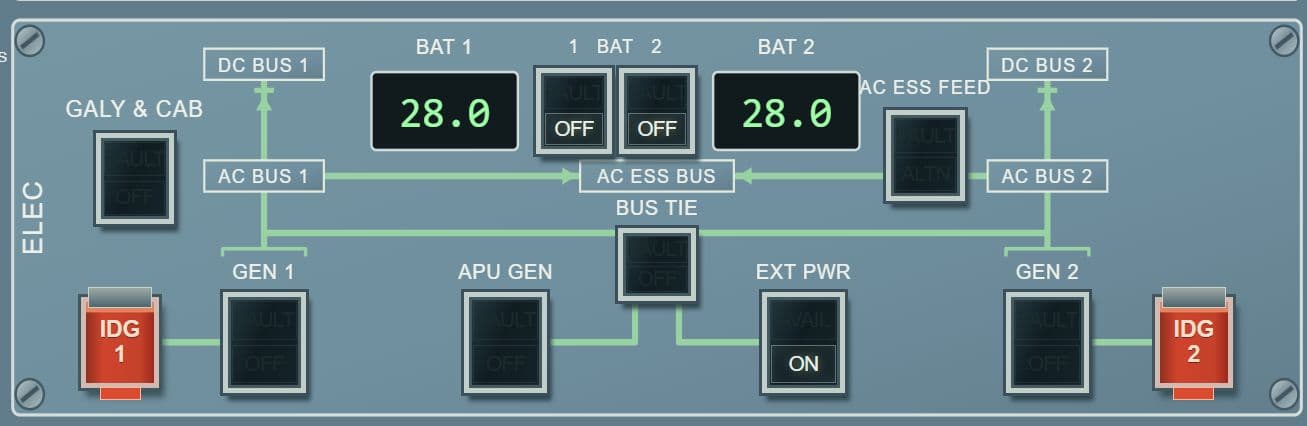
You are on the ground and switch on one of the two batteries. Even the OFF lights of the batteries have supply paths of their own, and the core works out where each light gets its power from.

On the ground, that is why the battery you switched on can supply the OFF light of the other one. You see the result on the overhead. Details like this emerge when you actually compute the power supply.

Capture of the operable overhead panel in Fly-K: ELEC section with lines drawn between generators, buses and bus tie. The BAT 1 and BAT 2 pushbuttons show OFF, EXT PWR shows ON.
The ELEC section of the operable overhead, with its lines drawn in. Both battery pushbuttons show OFF here.

The IRS align

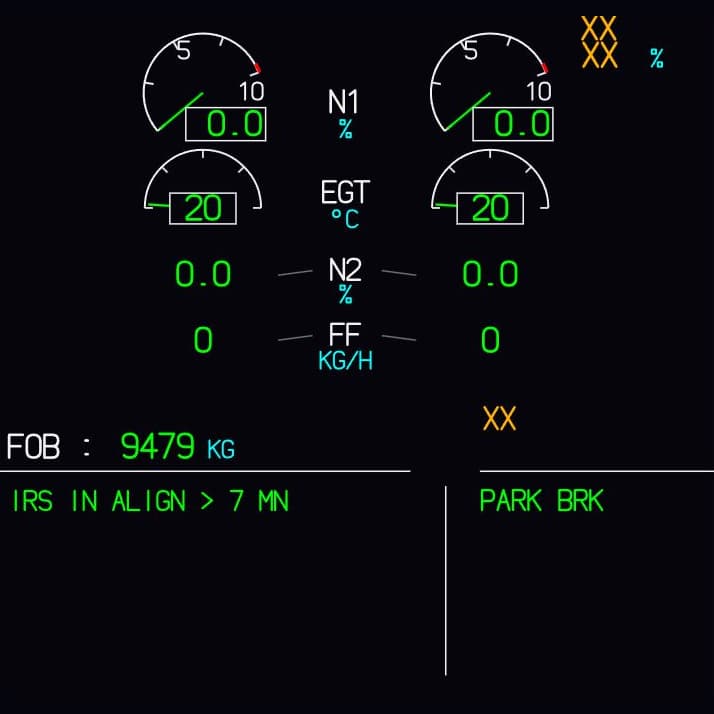
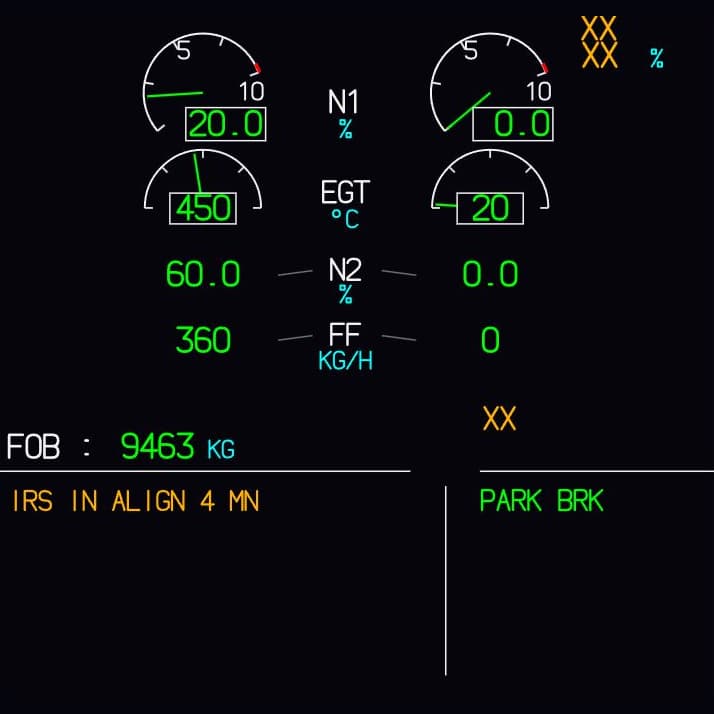
The three ADIRUs align, and how long that takes depends on the latitude. The core computes the alignment and knows the time remaining. You read it right off the ECAM: first IRS IN ALIGN > 7 MN, then in minute steps. Before engine start the line is green, afterwards amber.

On the PFD, attitude is already there during alignment while heading is still missing. Once alignment is complete, the heading tape is there too. For the impatient, there is Quick Align as a simulator aid.

Capture of the E/WD in Fly-K with both engines off: green memo IRS IN ALIGN > 7 MN.
Engines off: the time remaining is a green memo on the E/WD.
Capture of the E/WD in Fly-K with engine 1 running: message IRS IN ALIGN 4 MN in amber.
Engine 1 running: the same line is now amber.

Every instrument hangs on its bus

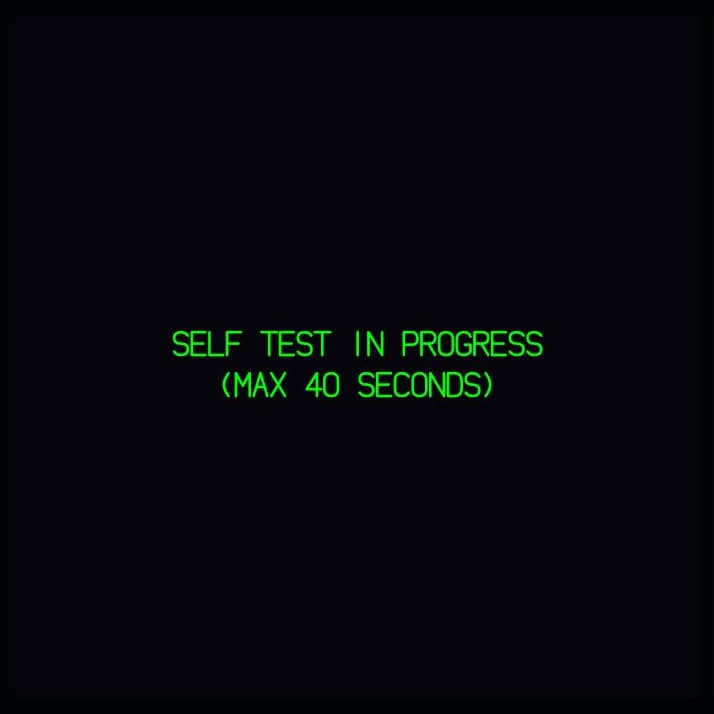
Every instrument hangs on its electrical bus. If the bus loses its supply, the display stays black. If the power comes back after a longer interruption, a self-test runs. None of that is staged. It follows the power supply.

Capture of a display in Fly-K during its self-test: green text SELF TEST IN PROGRESS (MAX 40 SECONDS) on a black background.
A display in its self-test. This is how it comes back after the supply was interrupted for longer.

What is in today

Aircraft systems

The electrical system is in with GEN 1/2, bus tie, AC and DC buses, batteries, emergency power and external power. Then there are hydraulics with interlocks and PTU, fuel with a tank balance, bleed and packs, the temperature zones, doors and brakes, the flight control surface ground test, and APU and engine supply. The ADIRS comes with three ADIRUs and latitude-dependent alignment.

Component failures

There are 56 individual component failures, among them flameout, pump failure, leaks and stuck bleed valves. Each one acts on the component, and the ECAM derives its message from the actual state.

All of it runs on the same core. What is still to come is on the roadmap.

ECAM procedures

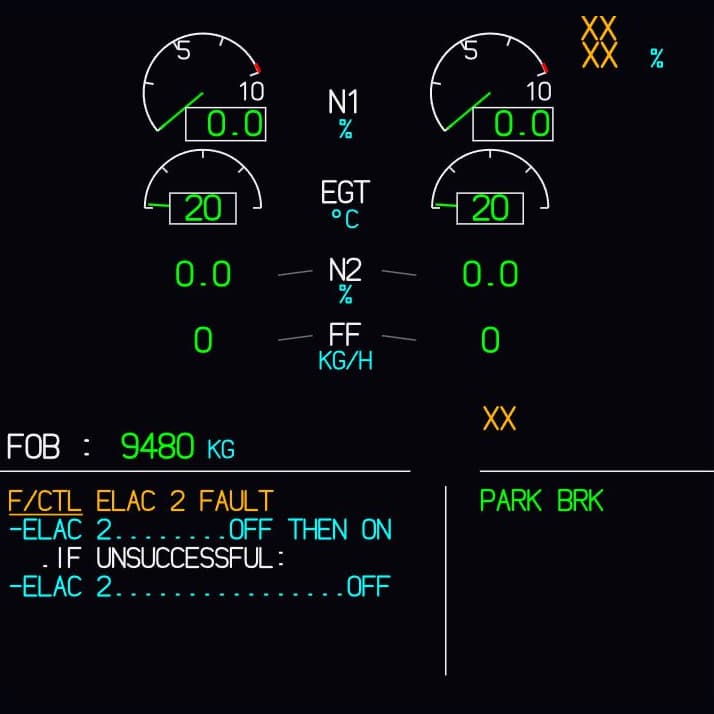
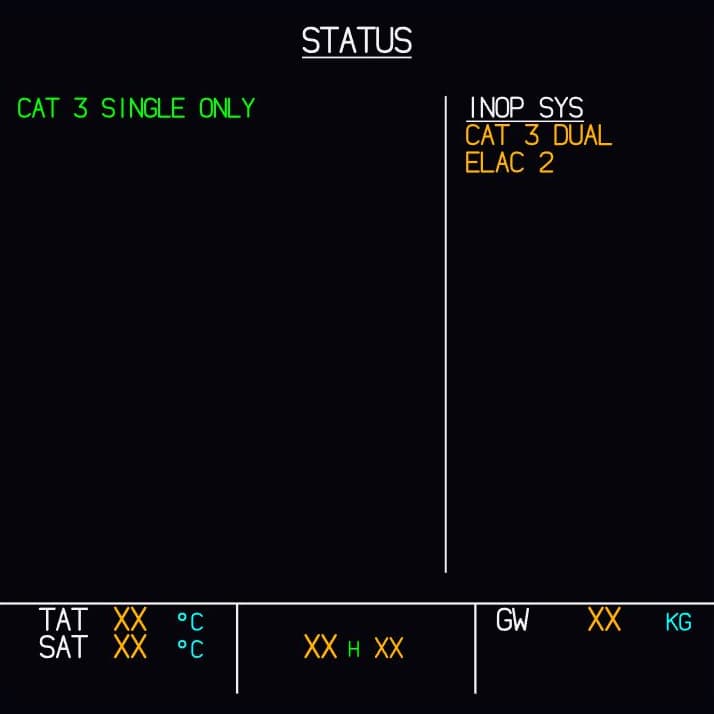
ECAM procedures run with STATUS, separate INOP entries, CANCELLED CAUTION and CLR page changes.

The captures show the E/WD with F/CTL ELAC 2 FAULT and the actions for it, and next to it the STATUS page.

Capture of the E/WD in Fly-K: message F/CTL ELAC 2 FAULT in amber, with the actions for it below in cyan.
The E/WD: the message in amber, the actions below it in cyan.
Capture of the STATUS page in Fly-K: CAT 3 SINGLE ONLY on the left, and on the right under INOP SYS the entries CAT 3 DUAL and ELAC 2.
The STATUS page, with the entries under INOP SYS on the right.

MCDU and flight plan

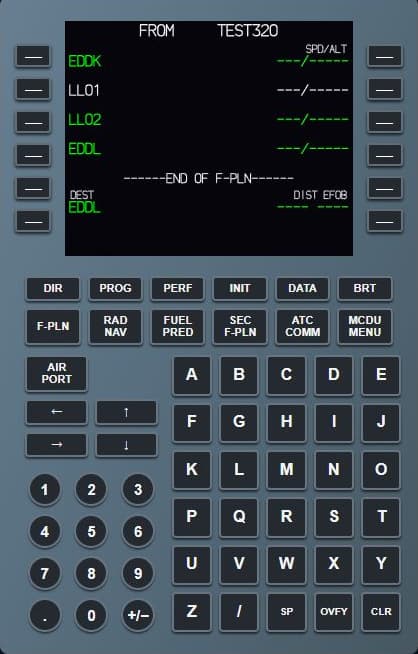
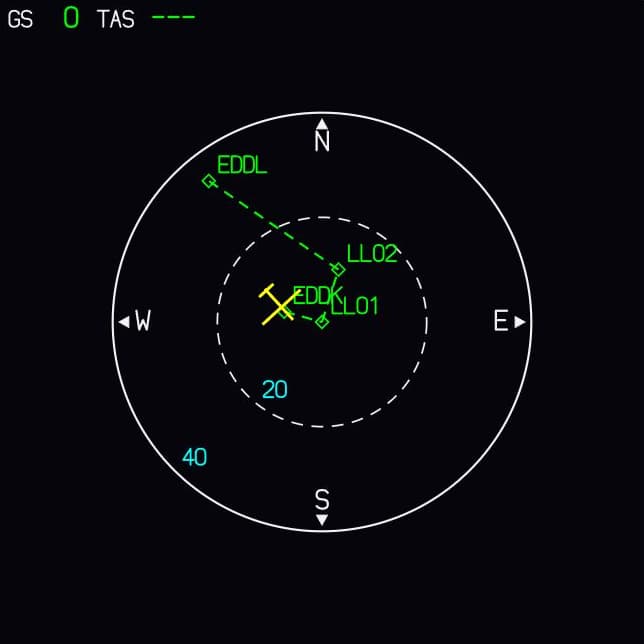
The MCDU has INIT, IRS INIT, waypoints, F-PLN and temporary lateral revisions with INSERT and ERASE. The route appears to scale on the ND.

In the captures, the MCDU holds an F-PLN from EDDK via two waypoints to EDDL, and the ND shows the same route in PLAN mode.

Capture of the MCDU in Fly-K as a whole unit: F-PLN page with the route from EDDK via LL01 and LL02 to EDDL.
The MCDU with the flight plan from EDDK to EDDL.
Capture of the ND in Fly-K in PLAN mode: the same route from EDDK via LL01 and LL02 to EDDL.
The same route to scale on the ND.

All captures in this section come from the running simulation.

Power up and practise

You have half an hour in the evening and you know what you want to practise. So you pick one of four starting states: Cold & Dark, external power, APU ready or engines at idle. One click is enough, and all systems and all failures are reset, in every open window at the same time. If an attempt goes wrong, the same click takes you back to the start.

For power-up there are three timing profiles: Reference, Variable and Training. ELAC, SEC and FAC power up separately, with variable times. So the same power-up sequence does not run exactly the same way every time, just like in the real aircraft.

It stays repeatable all the same. A seed fixes the randomness: the same seed produces the same sequence, and you can go through a situation exactly once more, as often as it takes to get it right. Fly-⁠K also records every simulation step, including all control inputs. A run can be played back deterministically: the same sequence, with every input at the same point.

The F/CTL display as shown in Fly-K

The F/CTL page with ELAC 1 and 2 and SEC 1 to 3. After power-on the computers start up separately, with variable times.

Host and clients on your home network

In Fly-⁠K only one part computes: the Core. Displays, panels and hardware are clients and compute nothing of their own. That leaves exactly one truth in the system, whether everything runs on one PC or is spread across as many machines as your cockpit needs.

Example setup

Everything on one machine: Core and clients run side by side.

Three machines: one for the Core, one for the displays, one for MCDU, pedestal and overhead.

Six machines: the Core and every client on a PC of its own.

The schematic shows how Fly-K is structured. The Core is the host: it computes the aircraft systems and is connected to five clients.

The clients in the example setup: captain's displays (PFD and ND), ECAM (E/WD and SD), first officer's displays (ND and PFD), MCDU and pedestal, overhead.

The Core sends the system state to every client. Wherever something is operated, in this example on the MCDU, pedestal and overhead, the inputs go back to the Core.

Core and clients can run together on one PC or be spread across several Windows PCs on your home network.

  • System state: from the Core to the clients
  • Inputs: from the clients to the Core
  • Boundary of one Windows PC

The Core is the host. It computes the aircraft systems and holds the one state that counts. A client shows what the Core tells it to, whether that is a PFD, the ECAM displays, an MCDU or the overhead. Whatever you operate goes to the Core, and that is the only place where anything is computed. That is why all displays show the same state at all times, no matter which machine they run on.

Setting up takes one Windows installer with two roles. As a Core PC a machine takes on simulation, displays and hardware, as a client PC it takes on displays, panels and hardware. A client PC stores the address of the main machine. So it remembers where the Core runs: no fiddling with the command line at every start. Host and clients talk over your home network.

Fly-⁠K is operated in combination with the common flight simulators. Support for them is planned and is on the roadmap.

Hardware

You connect your hardware panels through SIOC, and the connection runs over UDP. To the Core, hardware is a client like any display: what you switch on the panel goes to the Core, and what your panel shows comes from there. Fly-⁠K reads digital and analog inputs and drives lamp and digit outputs. The lamp on your panel and the indication on the display follow the same state, because both hang off the same Core.

You set up the connection in freely configurable profiles. You save a profile and load it again, and if you like, Fly-⁠K starts right away with the profile you selected. More hardware connections beyond SIOC are coming and are on the roadmap.

Instructor Station

The Instructor Station is coming. It turns the simulator into a training station: a separate interface on a second computer on the network, while the flying happens in the cockpit.

With two of you, an instructor or a friend sits at the second computer. They prepare the scenario, set your failures, and have pause, freeze and reposition at hand. Afterwards you go through the replay together.

On your own, you set the failure yourself. You tie it to a time or a flight condition, set off, and have forgotten about it by the time it strikes. The failure comes when it is meant to come.

Scenarios can be prepared and reused. Seeds control the randomness: reproducible when you want to practise something specific, and surprising when you do not. The groundwork is already in the Core, see Power up and practise.

Join the waitlist

Roadmap

Support for the common flight simulators is planned. Fly-⁠K then takes over the systems and displays while the simulator does the flying. A flight model and autoflight are coming too, which means autopilot, flight director and autothrust.

The Instructor Station will turn the simulator into a training station: a separate interface on a second computer on the network, with prepared scenarios, with failures tied to time or flight state, and with the replay of the recording.

Today the MCDU works with waypoints, F-PLN and temporary lateral revisions, and the route appears to scale on the ND. On the hardware side, SIOC is connected today, via UDP and with freely configurable profiles. More hardware interfaces will follow.

All of this is in progress or planned. We will name dates and an order once they are fixed. The roadmap shows you what you are waiting for: join the waitlist and we'll write to you as soon as it's ready. Before that, we'll only write when there is something to report.

Join the waitlist

We fly the aircraft we simulate

Fly-⁠K is developed by A320 pilots. A manual describes how a system is built. How it behaves in service is something you only learn by flying the type.

The manual tells you which steps a procedure has. The cockpit teaches you what you wait for between two steps and what you check while you wait. A flow only works if every system answers at the right moment, and whether something reacts at once or only after a while decides whether it feels real.

That is why ELAC, SEC and FAC start up separately in Fly-⁠K, with times that are not the same every time. That is why a display without power stays black and runs its self-test first after a longer interruption. And that is why the duration of the IRS alignment depends on latitude.

For you this means: you work through a sequence the way you know it, and your cockpit answers the way you expect from the real aircraft.

A direct line to the developers

Fly-⁠K comes from a small team, not from a corporation. If you write to us, you reach the people who build it.

It usually starts with a short email: a request, a missing detail, or something that behaves differently in the real aircraft. We check your note against what we know from the real cockpit and tell you honestly what will come of it. What makes Fly-⁠K better, we build in. Then you try it in your cockpit and get back to us if something is still not right.

We are already taking requests. Write to us at mail@fly-k.com or join the waitlist, and you will be the first to know when it starts.

What you need

You need a Windows PC. Fly-⁠K runs on a single machine or spread across as many as your cockpit needs, each of them running Windows. During installation you pick a role for each machine: Core PC or client PC. You only need a network if you spread things out. The machines then talk to each other over your home network.

Fly-⁠K is operated in combination with the common flight simulators. Support for them is planned and is on the roadmap. Cockpit hardware is not a requirement. You operate the overhead and the ECAM control panel with the mouse on screen. In total, Fly-⁠K has 184 operable controls. If you have hardware, you connect it via SIOC.
We will only state minimum requirements for the PC once we can back them up. Everyone on the waitlist will hear them first.

Frequently asked questions

Specific answers, and an honest “not settled yet” where we don't know ourselves.

What is Fly-K?

An A320 simulator for home cockpits, running on Windows and operated in combination with the common flight simulators. One central Core computes the aircraft systems. Displays, panels and hardware are clients and compute nothing of their own. That is why every display shows the same state, and the ECAM derives its messages from that state.

Who is Fly-K for?

For anyone building or running an A320 home cockpit, from a hardware panel on the desk to a full cockpit in the basement. If you have no hardware yet, you operate Fly-⁠K with a mouse and a monitor.

Which aircraft does Fly-K simulate?

The A320. The reference aircraft is the A320-214. Whether other types will follow later has not been decided.

Does it work with my simulator?

Support for the common flight simulators is planned.

How many PCs does it run on?

On one, or on as many as your cockpit needs. A single Windows installer comes with two roles: the Core PC handles simulation, displays and hardware, while a client PC handles displays, panels and hardware. The machines talk to each other over your home network.

How deep do the systems really go?

Take the electrics. Even the BAT OFF lights have their own supply paths: on the ground, a battery that is switched on can power the OFF light of the other one. Every instrument sits on its electrical bus as well. Without power the display stays black, and after a longer interruption it runs a self-test. Details like these emerge because Fly-⁠K actually computes the power supply.

How can I send you requests and ideas?

Write to us at mail@fly-k.com. We are a small team, so your message goes straight to the developers.

Your question isn't here?

Write to us. Your message goes straight to the developers.

mail@fly-k.com

Be the first to know when Fly-K launches

Fly-⁠K has not been released yet. Sign up and we'll write to you as soon as it's ready. Before that, we'll only write when there is something to report.

After you sign up we send you a link, which you confirm once. Then you are on the list, and you can unsubscribe at any time with a single click.

We use your address only for emails about Fly-⁠K.